Points Program
A complete merchant guide to configuring, activating and managing a loyalty points programme — from the first rule to the final redemption.
Find what you need.
Search across the complete Axentra Loyalty Points guide.
One system for earning, redemption and control.
Axentra Loyalty Points gives merchants a single control layer to define how customers earn points, when those points become available, how they are redeemed, and how the programme appears across the storefront.
Award
Reward purchases and selected customer actions with points.
Release
Control when order-linked points move from blocked to available.
Redeem
Let customers convert eligible points into checkout value.
Create the programme.
Start from Loyalty Points → Settings. The core setup follows: Basic Config → Earning Rules → Redemption Options → Review & Activate.
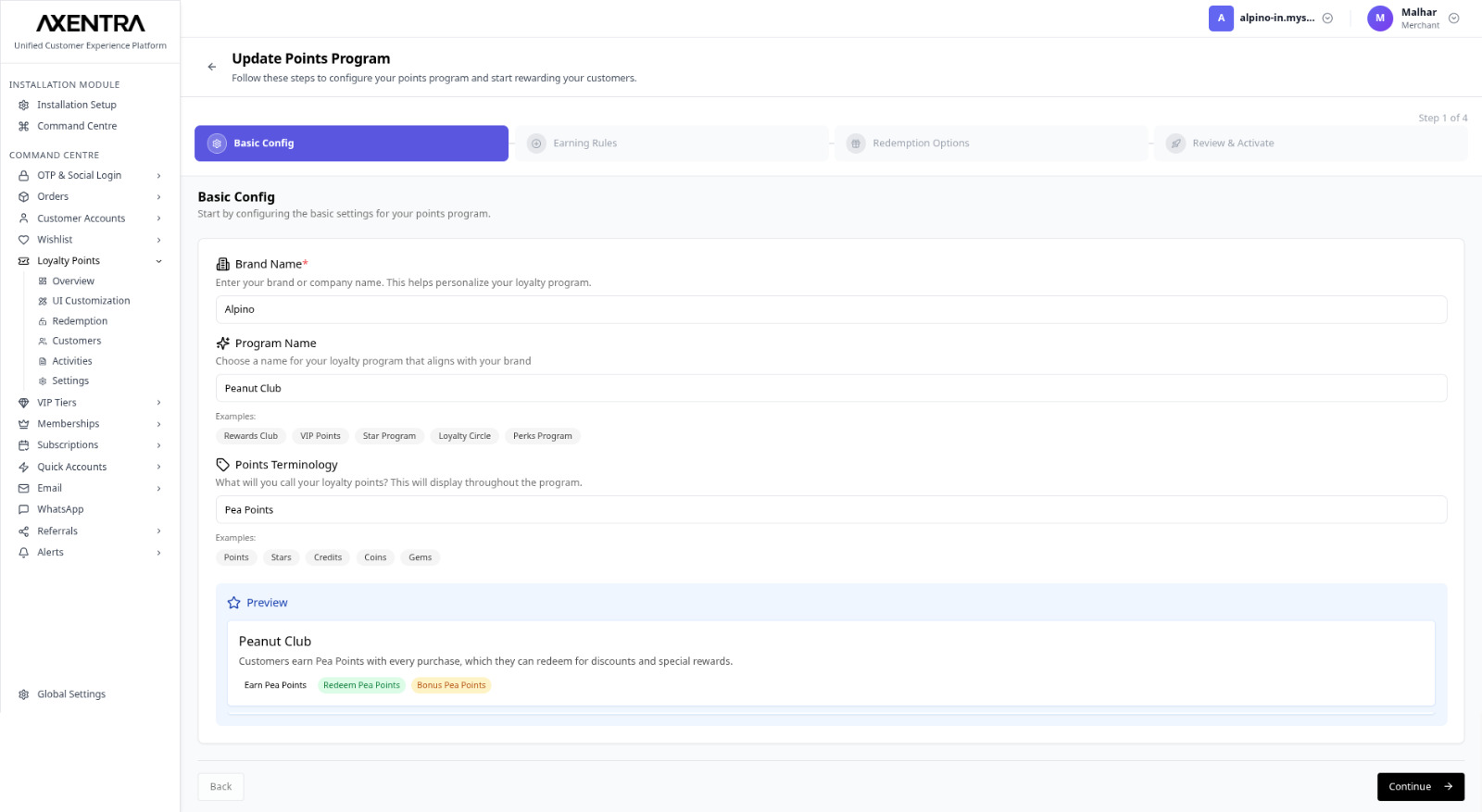
Basic configuration
Define how points are earned.
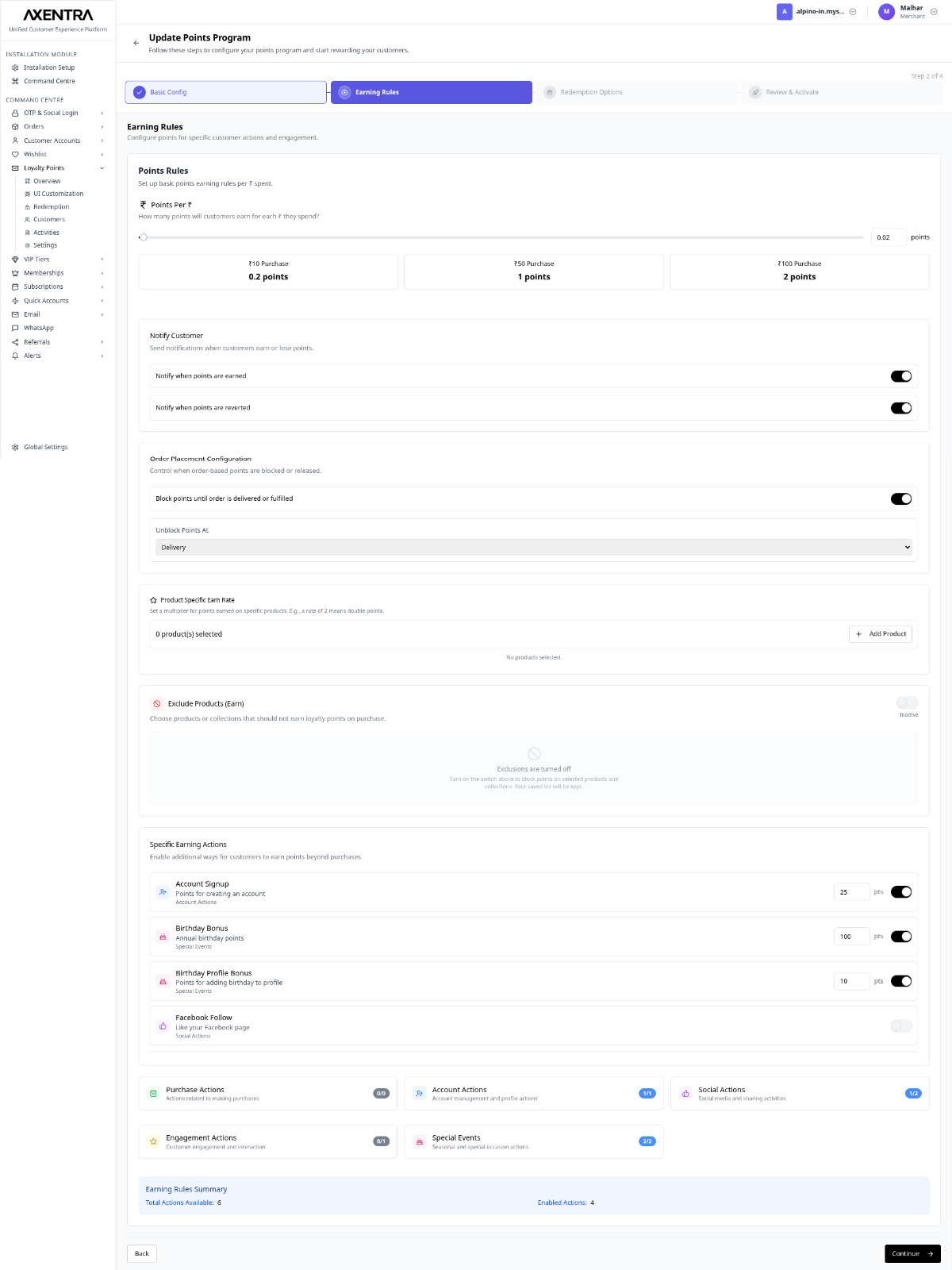
Use Earning Rules to establish the base purchase rate and additional actions that can generate points.
Purchase earning rate
Points Per $ determines the number of points earned for each dollar spent. The interface provides a live purchase-value preview.
Customer notifications
Go to Email → Settings → SMTP Configurations to configure your SMTP details. If you need assistance, email support@axentraos.com.
Order placement configuration
Block points until order is delivered or fulfilled controls whether order-earned points remain blocked until the configured milestone.
Product-specific earning rate
Select specific products and apply a multiplier to their earning rate where supported.
Exclude products
Enable exclusions when selected products or collections should not earn loyalty points.
Additional earning actions
Available actions are grouped into purchase, account, social, engagement and special-event actions. Enable an action and configure its point value where available.
Set the value of points.
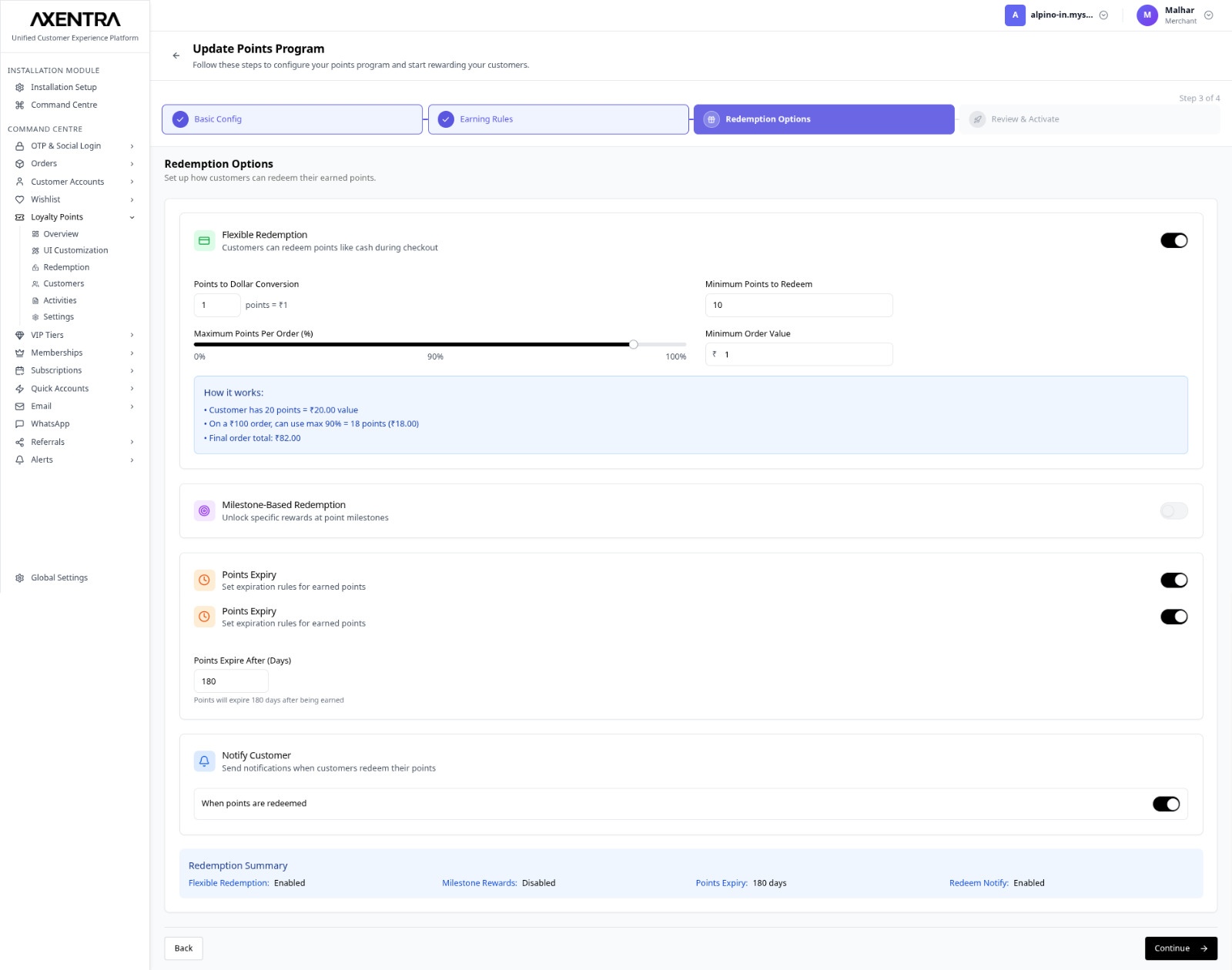
Redemption rules define how customers turn points into checkout value and the boundaries that govern redemption.
Flexible redemption
A customer with 20 points has $20 of value. On a $100 order, a 90% maximum redemption cap allows up to 18 points, producing an $18 discount and an $82 final order total.
Milestone-based redemption
Use milestone-based redemption when rewards are unlocked at defined point milestones.
Points expiry
Enable expiry and define the number of days after which earned points expire.
Review once. Activate with confidence.
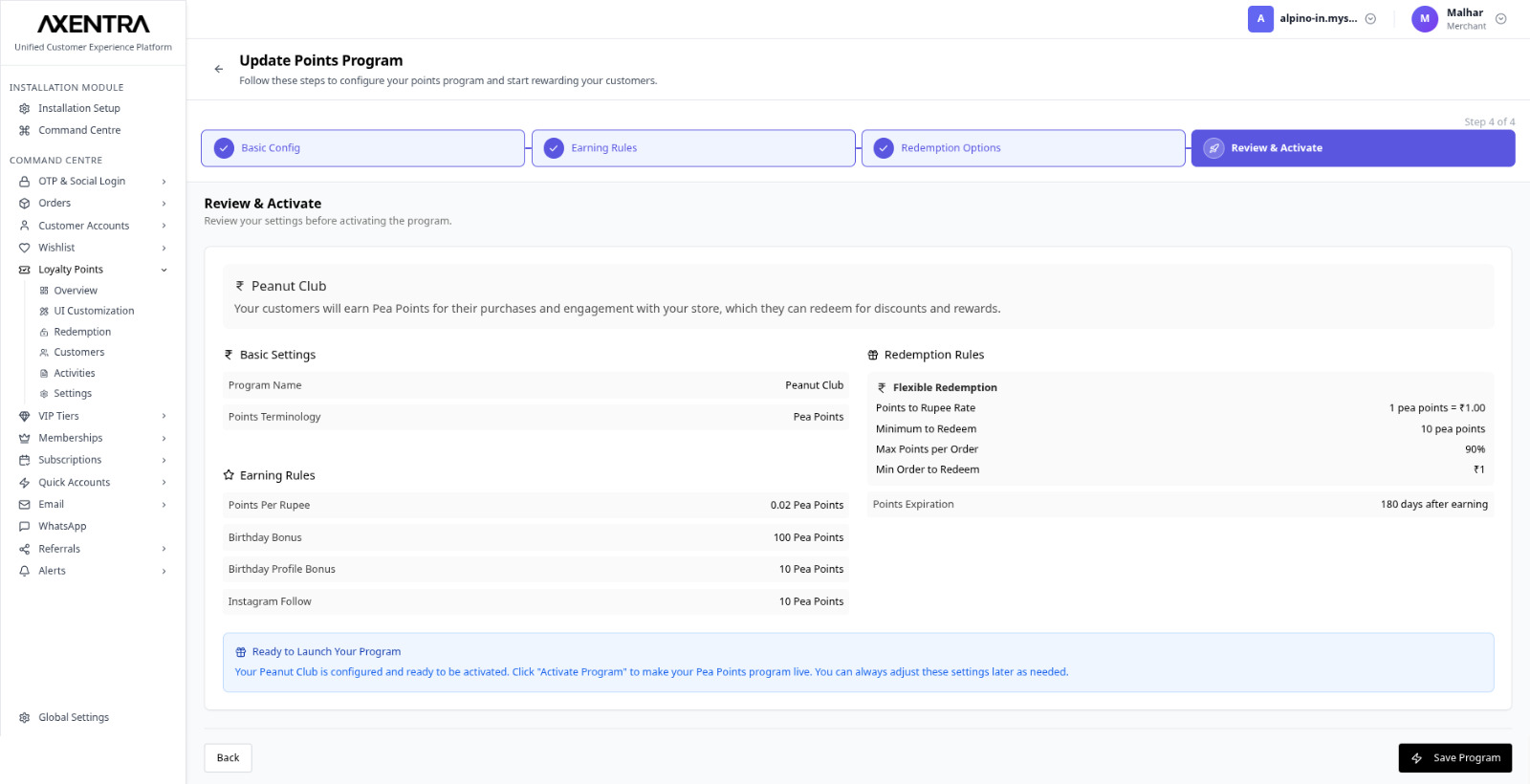
The final step consolidates the programme configuration. Verify the programme identity, earning rules, redemption rules, expiry and notifications before activation.
Select Save Program / Activate Program to make the configured programme live.
See the programme at a glance.
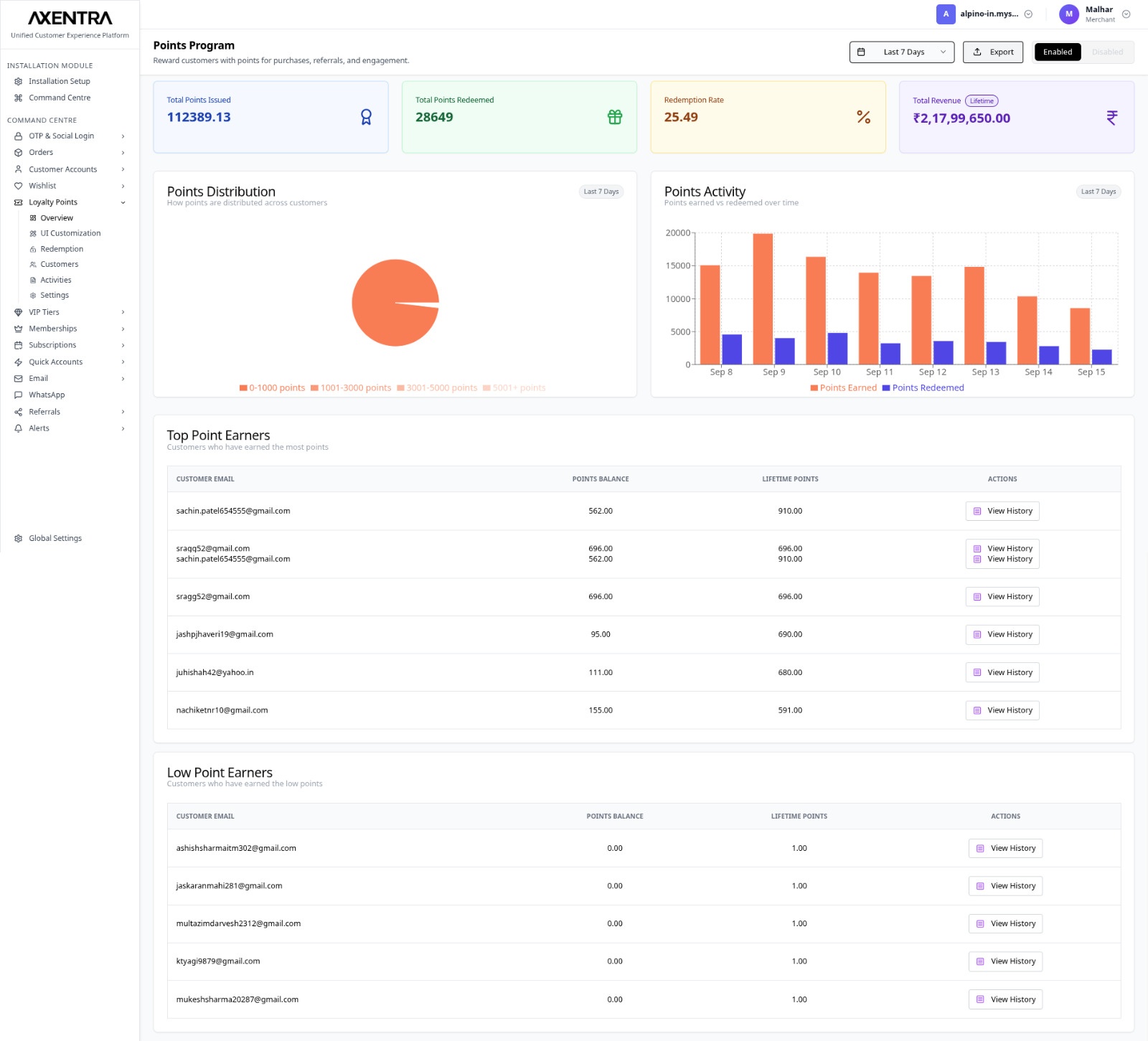
The Points Program dashboard provides a high-level view of programme activity and customer participation.
Points Distribution
Shows how customers are distributed across point-balance ranges.
Points Activity
Shows points earned versus points redeemed over the selected period.
Top & Low Point Earners
Customer tables show email, current points balance, lifetime points and an action to view history.
Manage customer balances.
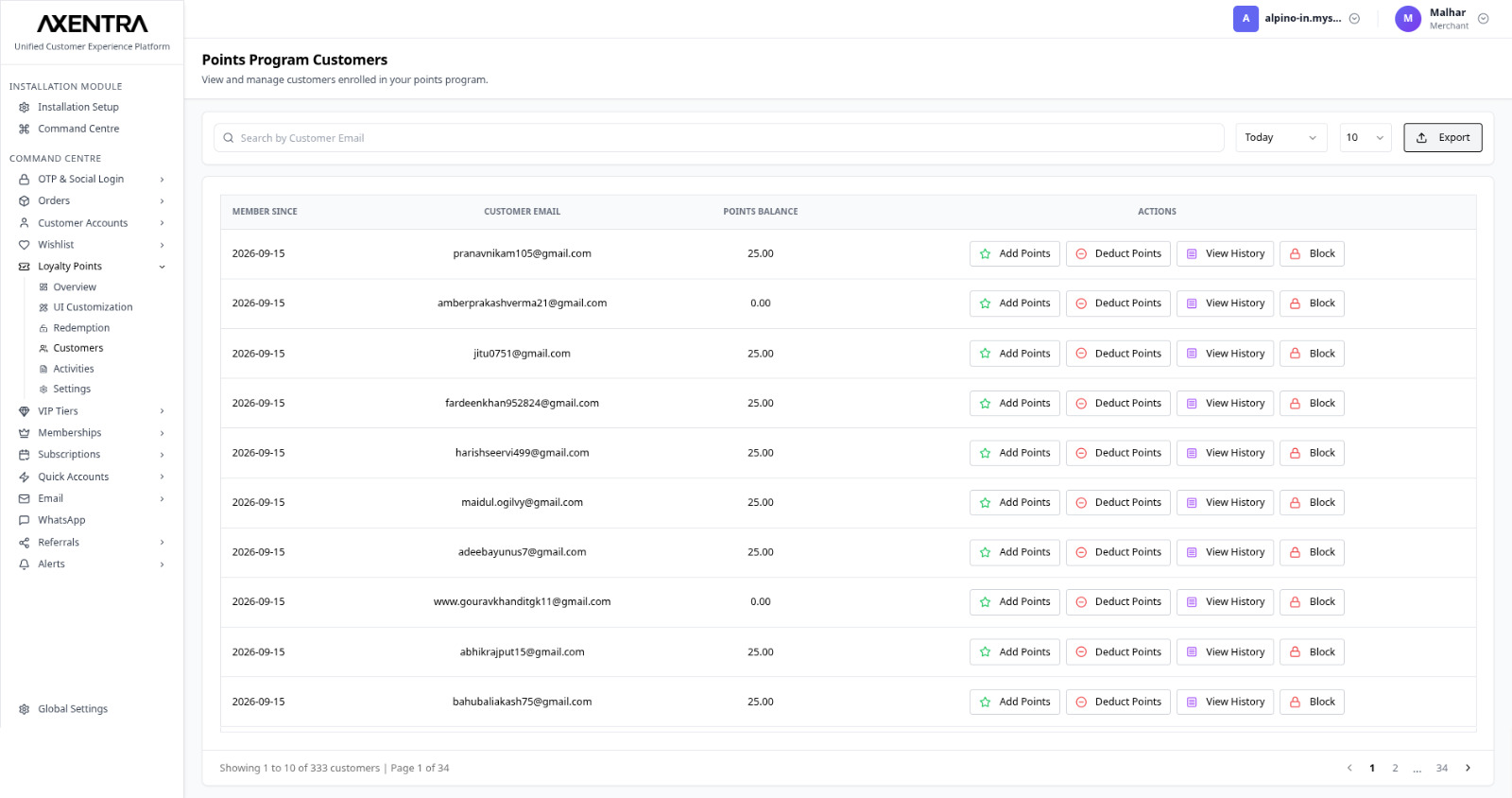
Search
Search customers using customer email.
Add Points
Manually credit points to an individual customer.
Deduct Points
Manually remove points from an individual customer.
View History
Review a customer's points history and activity.
Block
Block a customer from the points programme using the available customer action.
Export
Export customer data from the customer-management view.
Trace every movement of points.
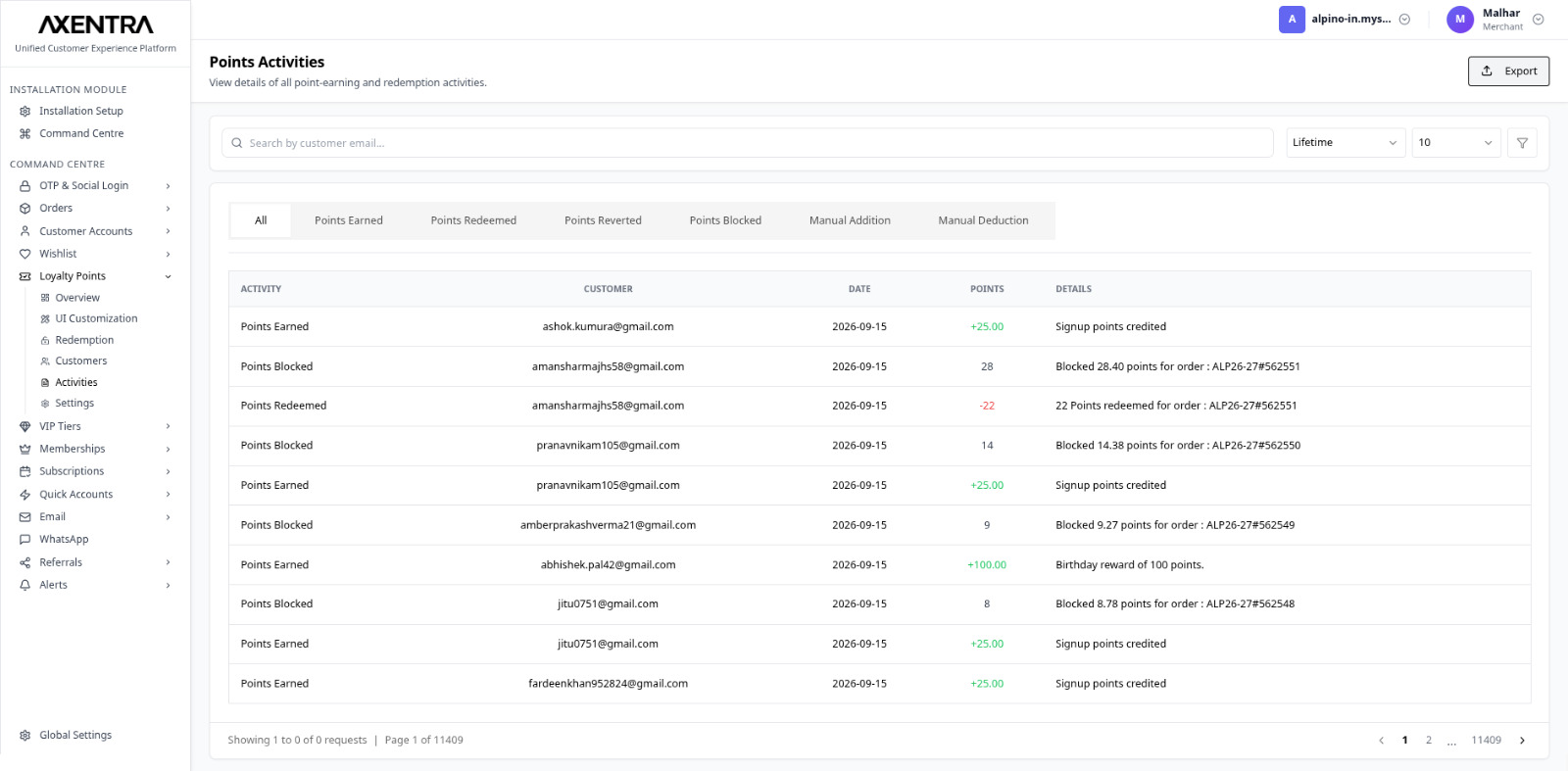
The Activities view provides a chronological record of point movements and related events.
Track redemption activity.
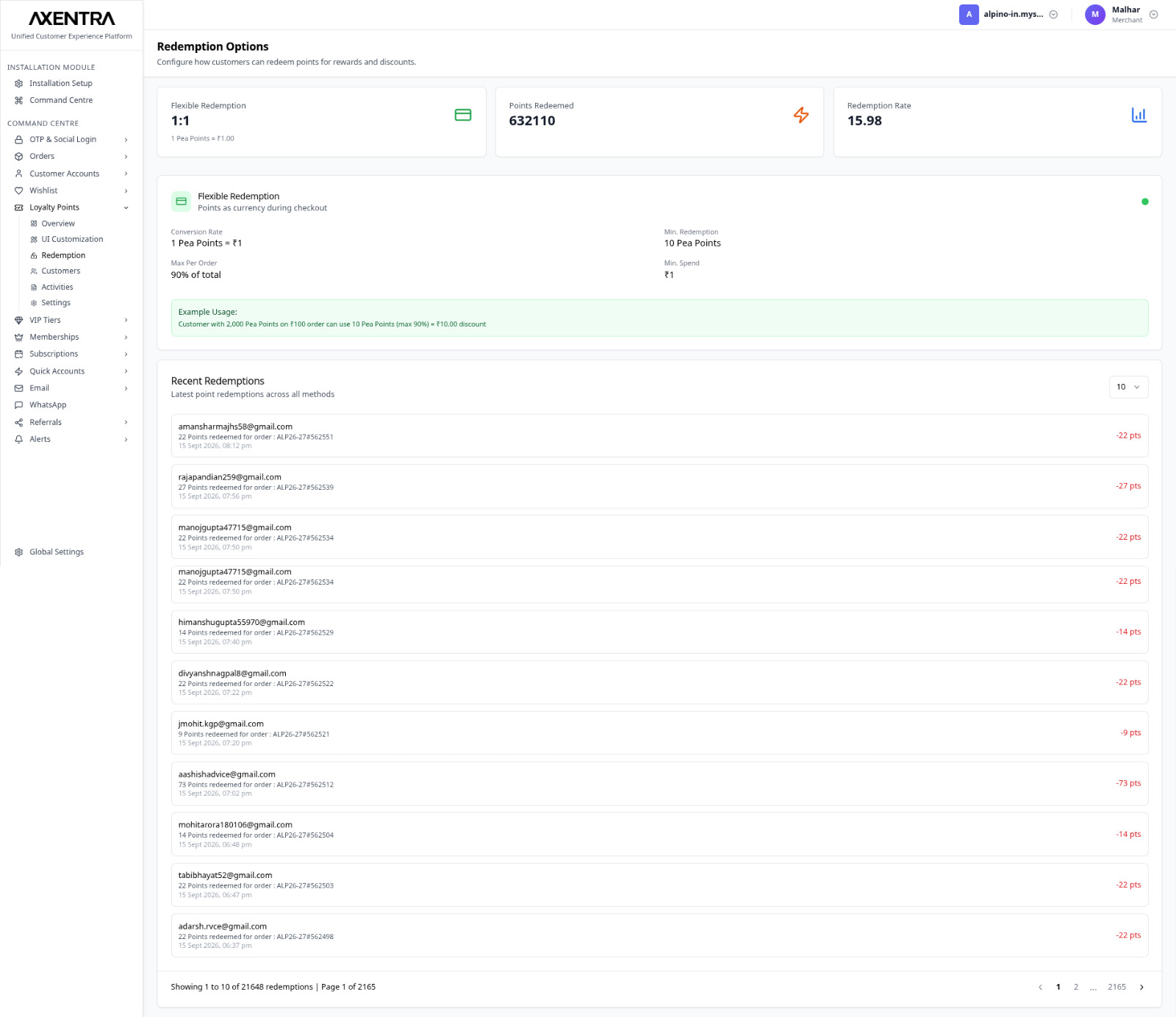
Review redemption performance and recent customer redemptions, including the customer, points redeemed, order reference and timestamp.
Make the programme visible where it matters.
UI Customization controls the storefront elements customers see, with configuration and live preview.
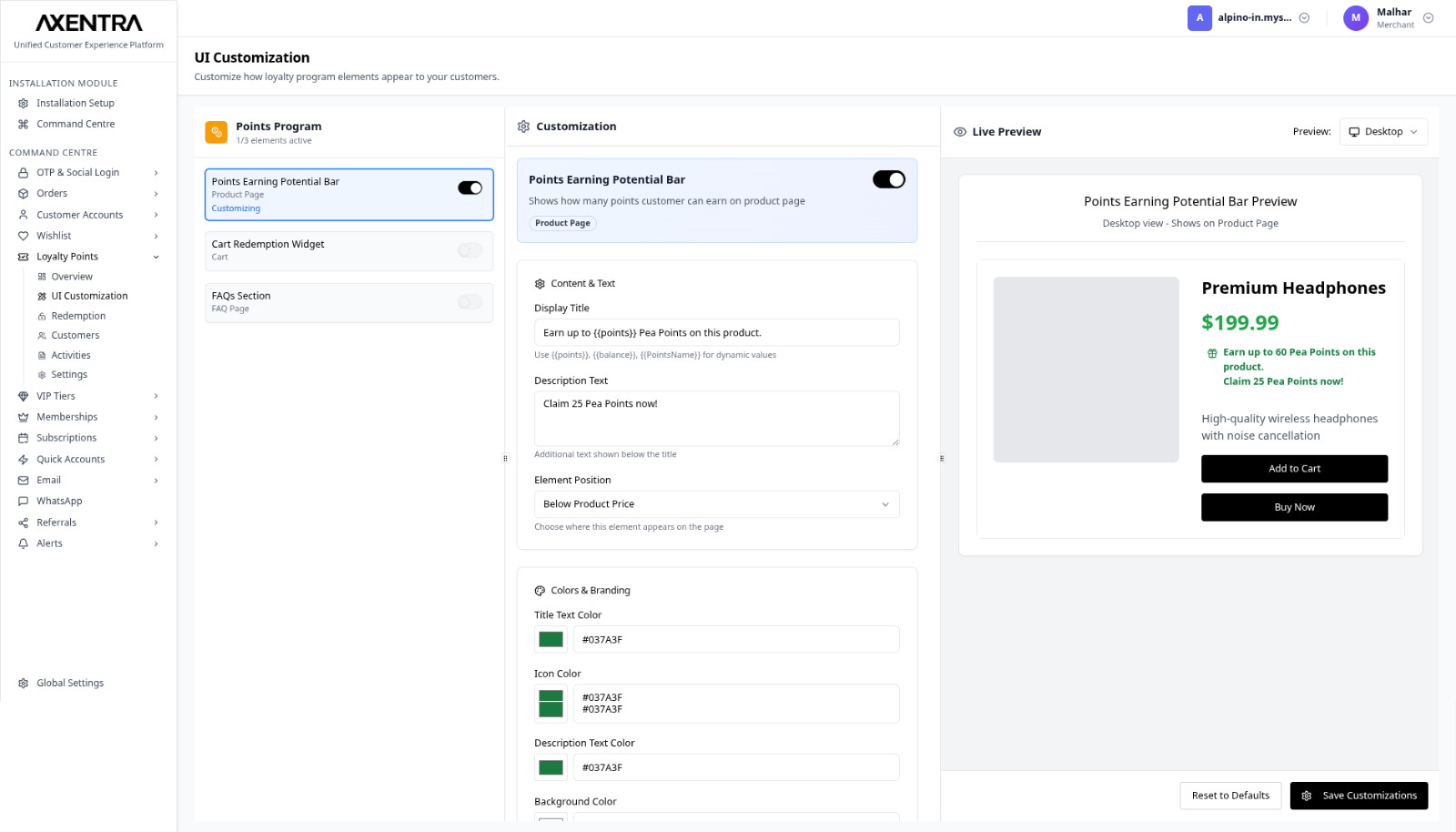
Points Earning Potential Bar
Displays the loyalty points customers can earn from a product purchase on the product page. Configure its title, description, position, and appearance.
{points}, {balance} and {PointsName} can be used where supported.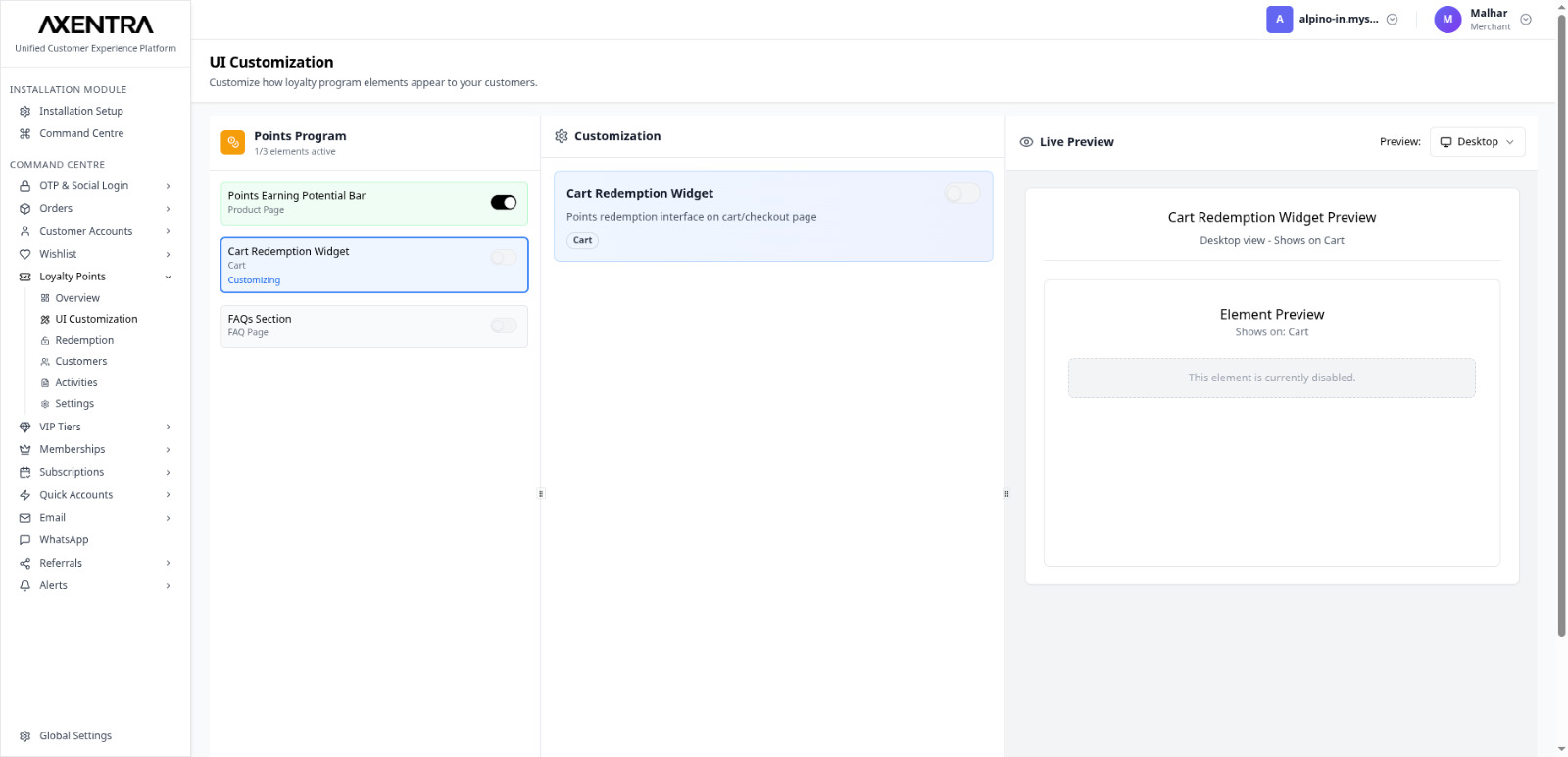
Cart Redemption Widget
Provides the customer-facing interface for redeeming points from the cart. It can be enabled or disabled independently.
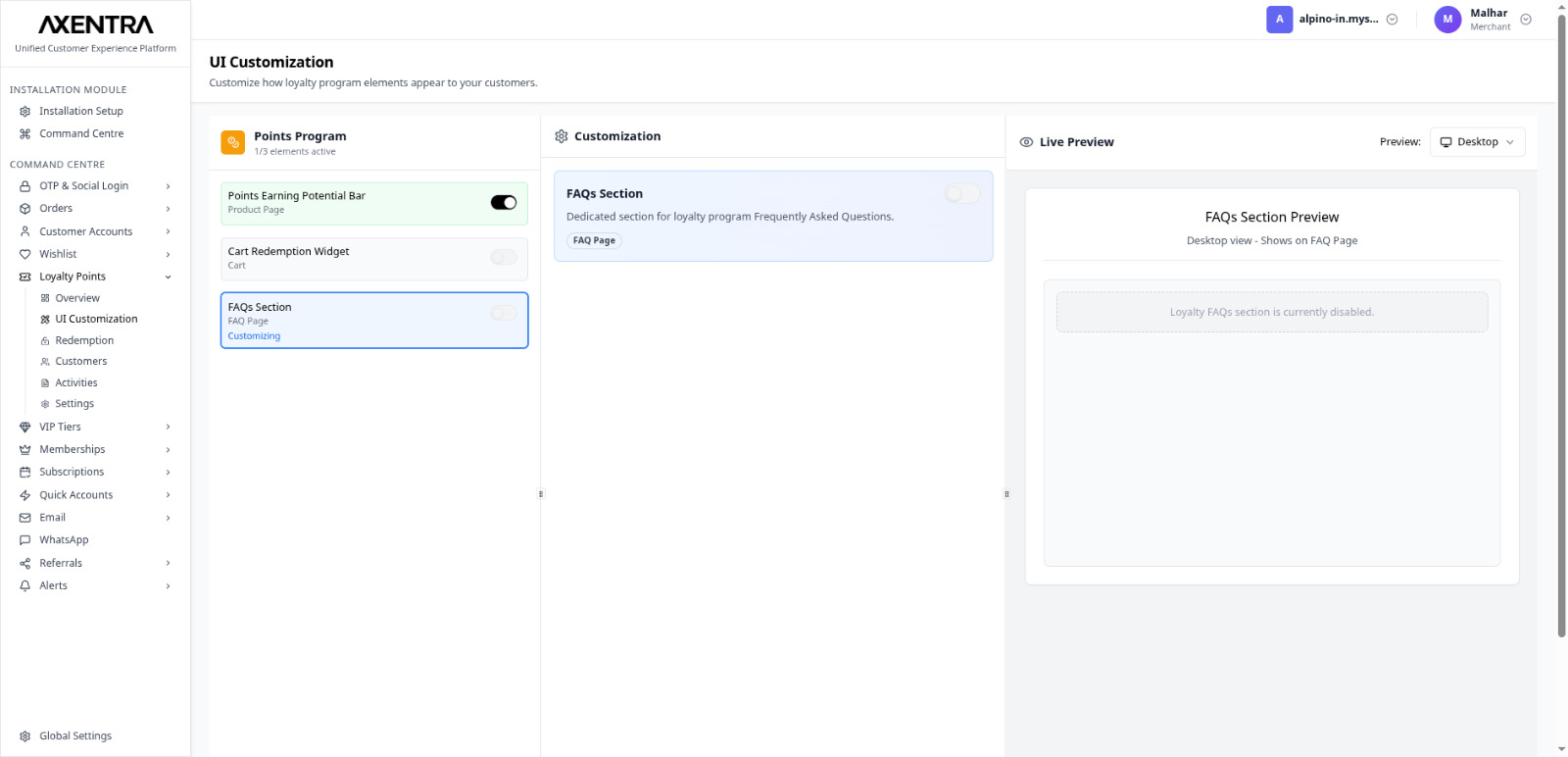
FAQs Section
Provides a customer-facing area for loyalty-program questions and can be enabled or disabled independently.
Use Live Preview to validate storefront changes before saving. The interface also provides Reset to Defaults.
Control loyalty notifications.
Use the Notifications Library to manage customer-facing loyalty emails and notification templates. The library is available from Global Settings → Notifications Library.
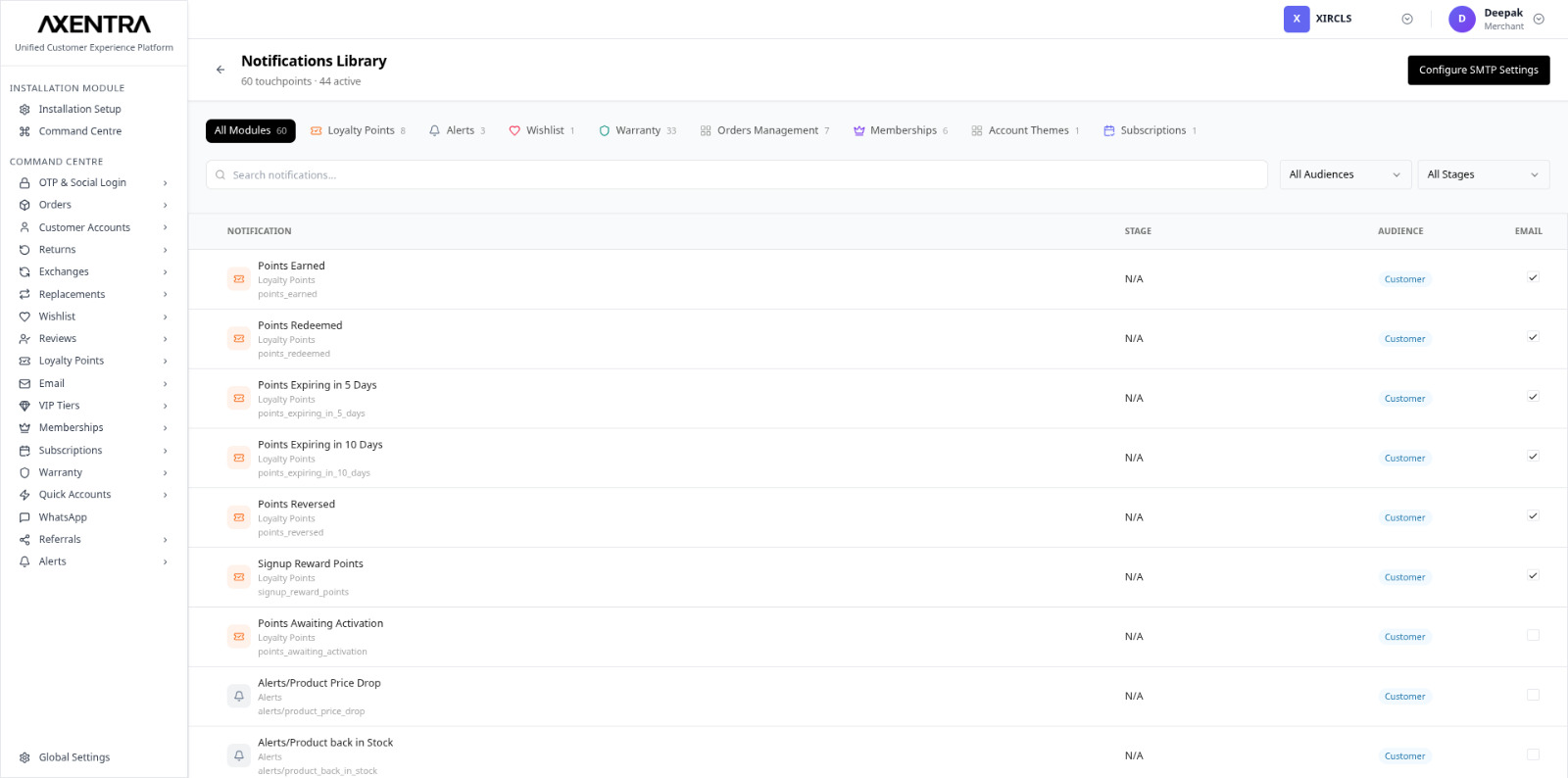
Find loyalty notifications
Select the Loyalty Points module in the Notifications Library to view the notifications available for the programme.
Enable or disable email notifications
The Email column shows whether the notification is enabled. Use the notification's email control to turn individual email notifications on or off.
The Notifications Library controls which notifications are active. By default, active emails are sent from info@axentraos.com.
To send them from your own email account instead, continue to Email → Settings → SMTP Configurations.
Connect your email.
To send loyalty emails through your own email account, configure an SMTP server in Axentra.
Open the Email module, go to Settings, and select Add SMTP to create your email server configuration.
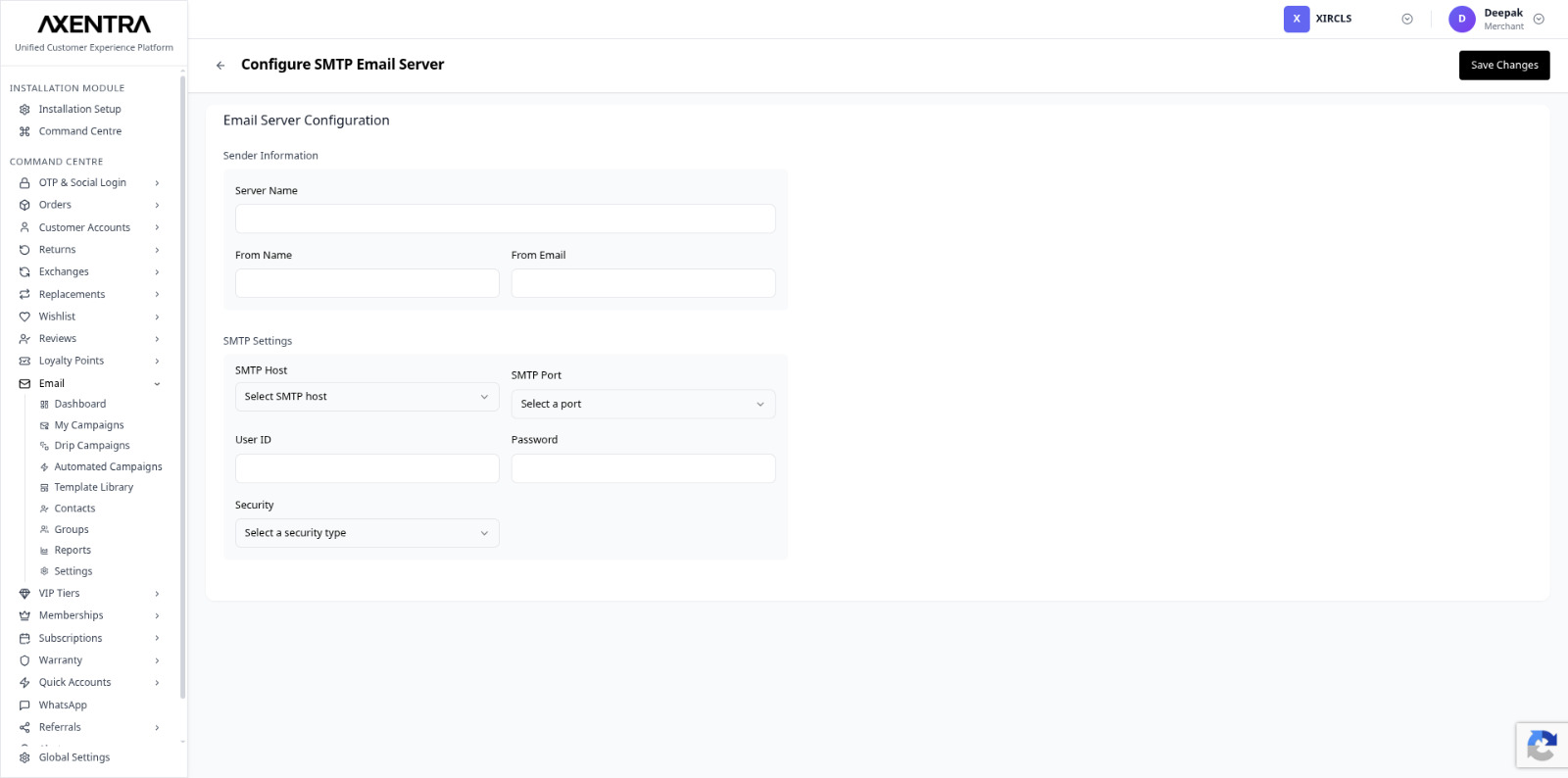
Configure SMTP Email Server
Enter the sender information and SMTP server details required to send emails from your own email account.
If you need assistance configuring SMTP, email support@axentraos.com.
Frequently asked questions.
What is the Points Program?
A configurable loyalty system that rewards customers with points for purchases and selected customer actions, with rules governing availability and redemption.
Can I rename the loyalty programme?
Yes. Set the Program Name in the Basic Configuration section under Settings and define the terminology used for points.
How are purchase points calculated?
Purchase points are calculated based on the configured Points Per $ rate.
Can I set different earning rates for different products?
Yes. The Product Specific Earn Rate function allows you to select specific products and apply a multiplier to their standard earning rate.
Can I exclude specific products from point earning?
Yes. Enable the Exclude Products function and define the products or collections that should be excluded from points earning.
What do blocked points mean?
Order-linked points can be held in a blocked state until the configured release milestone is reached.
How does Flexible Redemption work?
Flexible Redemption lets customers choose how many points to use toward an order. The points are converted into order value based on the configured conversion rate and redemption limits.
Can I limit how many points are used on one order?
Yes. Maximum Points Per Order (%) sets the maximum percentage of an order that customers can pay using points.
Do points expire?
Yes. Points expiry is configurable. When enabled, you can set how long earned points remain valid before they expire.
Can I customize the loyalty elements on my storefront?
Yes. The UI Customization area lets you configure customer-facing elements such as the Points Earning Potential Bar, Cart Redemption Widget, and FAQs Section.
How can I send emails through my own email account?
Go to Email → Settings → SMTP Configurations to configure your SMTP details. By default, loyalty emails are sent from info@axentraos.com. To send them from your own email account, configure your SMTP settings. If you need assistance, email support@axentraos.com.
Can I manually change a customer's points balance?
Yes. Administrators can use the Add Points or Deduct Points feature in the Customers section to manually adjust an individual customer's points balance.
What are Points Reverted?
Points Reverted records points that have been reversed by the programme.
Can I export loyalty data?
Yes. Loyalty data can be exported from the Customer and Activity sections of the loyalty programme dashboard.